nuphy air 75v2 qmk
note: be careful when flashing, if something disconnects while flashing, you can brick your nice new keyboard, and don't you go messaging me when that happens. I warned you! But that shouldn't happen if you follow my instructions very carefully 💯
I just got my brand new NuPhy Air75v2 (with the most obnoxiously loud switches so that I can finally feel like I'm typing on a typewriter, just as I've always dreamed about).
I wanted to play around with modifying keymaps, setting macros etc. so I went over to usevia.app and authorized my device... but nothing happened. It said paired within the browser dialog box, but no luck. Here's how I got it to work.
Step 1
NuPhy provide some relatively jank instructions here. Check it out to get an idea of what you're getting yourself into.
Step 2
Download the latest QMK Toolbox Release here for your OS. At the time of writing, it is 0.3.2.
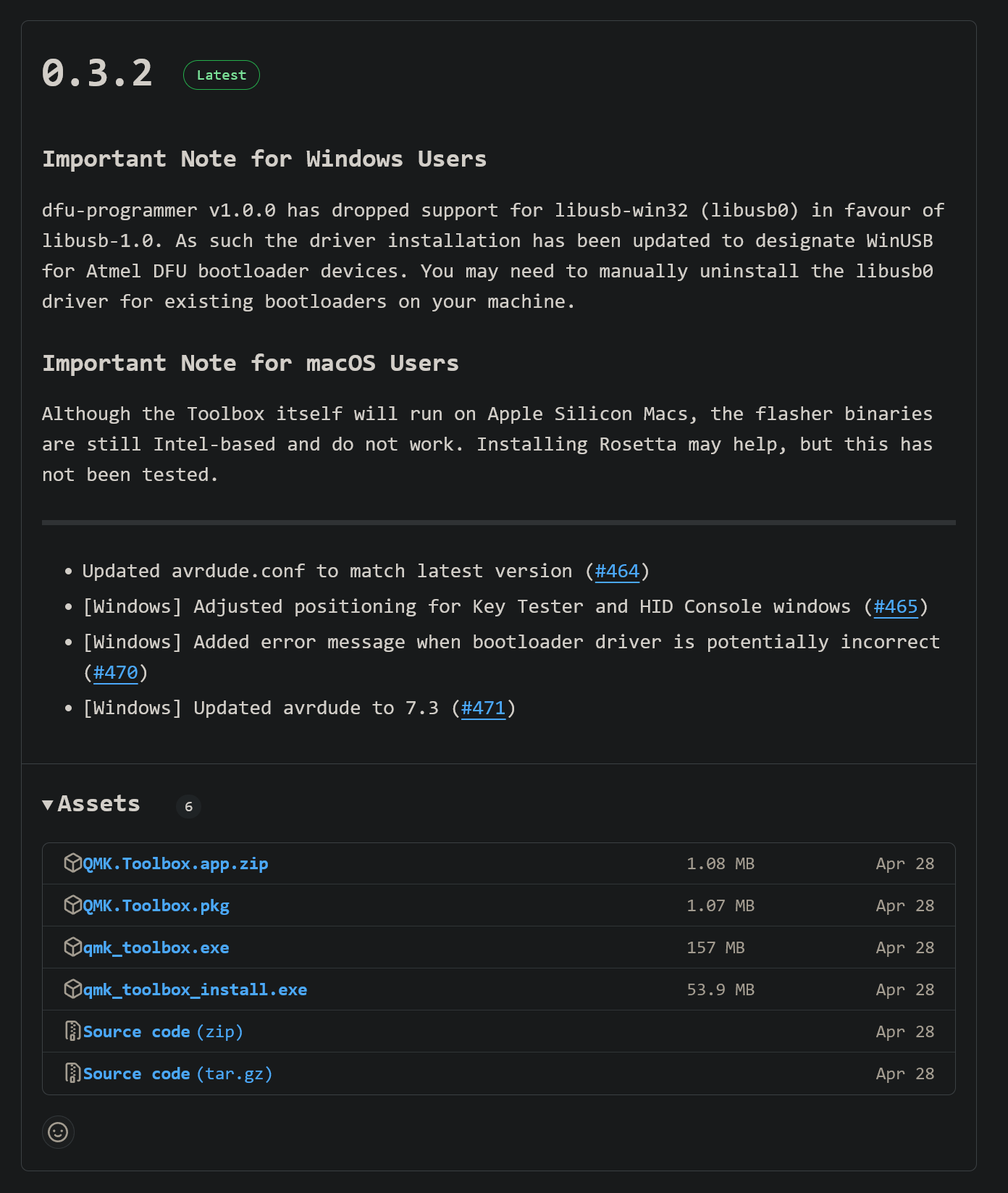
Step 3
Run QMK Toolbox with admin privileges. Install the drivers by clicking on 'Tools' --> 'Install Drivers'.
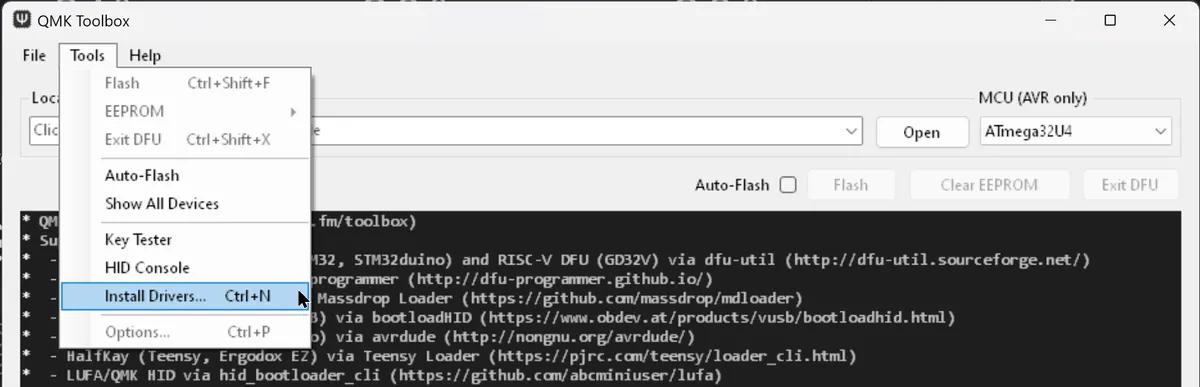
Step 3.5
Reboot (or don't if you're bad, whatever, I'm not your mom)
Step 4
Boot up QMK Toolbox with admin privileges again. Read through the advice on the NuPhy page from step 1.
Make sure to use the cable from the box (though I'm pretty sure there is nothing super magical about the cable in the box). Unplug your keyboard, change it to wired mode using the switch, hold down Esc, and plug it back in. Some yellow text comes up that should say something about a bootloader.
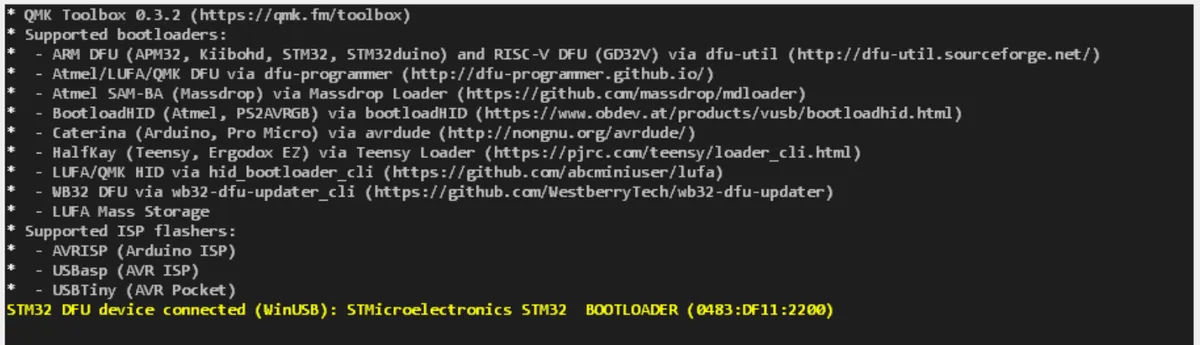
Step 5
Download the latest firmware from NuPhy's page in Step 1. While you're here, also go ahead and download the ZIP with the JSON (click the link that says JSON file) that we will need later for the VIA configurator to know the stock layout, lighting pattern names etc.
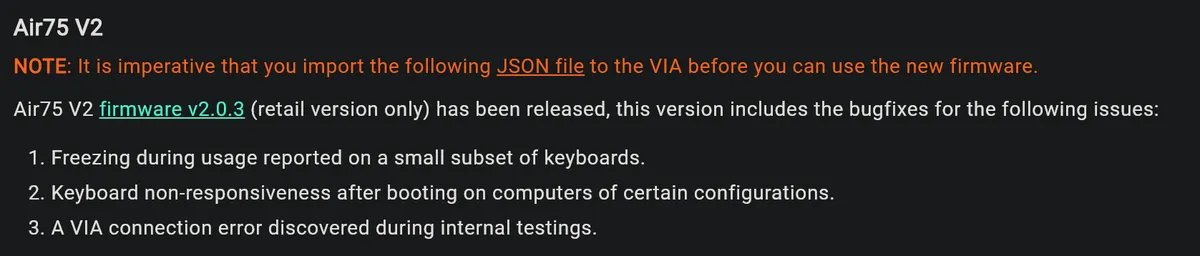
Step 6
Open the .bin file for the firmware version you downloaded in QMK toolbox (run with admin privileges) and click Flash.
Step 7

Step 8
When it's done, turn off the keyboard and reboot it to check all is well.
Step 9
Go to usevia.app, and click 'Authorise Device'.
If you're having issues here, Chrome works best (actually, I think Chrome, Edge and Opera are the only ones to support WebHID right now, see here and you might need to go to chrome://flags (or arc://flags if you're fancy) and search for WebHID and set the flag there to 'Enable'. Reload the browser and try again and it should be fixed.
Step 10
Unzip the JSON from before, and in the design tab, go to 'load draft definition' (great name - very clear /s). If you can't find the design tab, go to settings and click 'Show Design Tab'.
Step 11
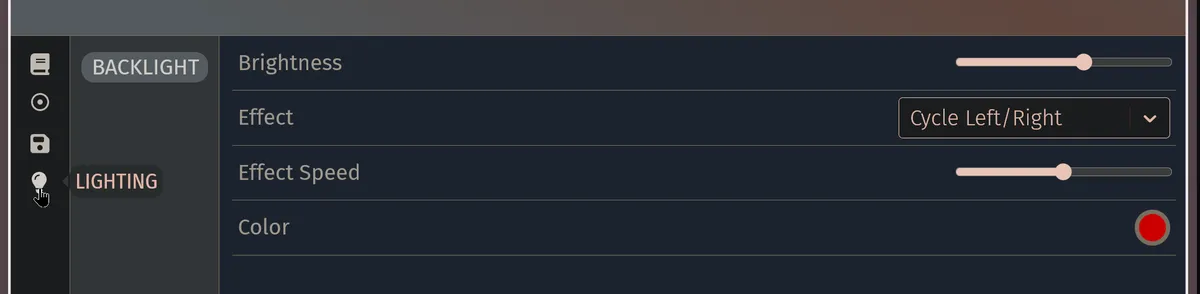
Mod to your hearts content. A good way to check you are connected to your keyboard is adjusting the lighting controls and seeing if your keyboard reacts.
Hope this helps!